How to check a redacted PDF before you send it
A redacted PDF can look perfect and still give away everything. Many editors let you draw a black rectangle over a name or account number, but the words underneath stay in the file. Anyone who receives it can select the black area, copy it and paste the text into an email. Before you send a redacted document to a tribunal, a landlord, an employer or in reply to a subject access request, run the checks below. They take about two minutes and need nothing more than a PDF reader.
Why black boxes are not enough
A PDF is built from layers. The page text is stored as characters with positions; a box drawn in a comment or shape layer simply sits on top. The National Archives’ redaction toolkit warns that electronic documents can hold change histories, audit trails and embedded metadata through which removed information can be recovered. Its recommended approach turns the redacted pages into images so that no hidden text survives. Organisations answering requests under the ICO’s right of access guidance carry the same risk: a careless redaction can disclose personal data about someone else.
Four checks to run on the final copy
- Search. Open the redacted copy and use Find (Ctrl+F, or Cmd+F on a Mac) for each hidden word, number or surname. If the reader jumps to a black box, the text is still there.
- Select and copy. Drag across a black box, copy, and paste into a plain text editor. Real redaction gives you nothing or only the surrounding words.
- Extract all the text. Run the file through PDF to text. It lists every page’s text in reading order, so you can read through it for anything that should have gone. The file stays on your device.
- Check document properties. Open File, then Properties, in your PDF reader. The author, title and subject can contain a name or a case reference. Remove PDF metadata lists these details and saves a copy without them.
Fix a redaction that failed
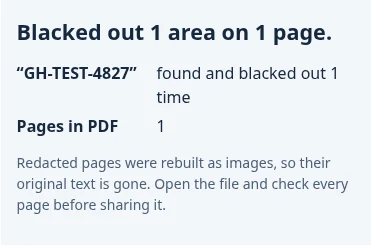
Go back to your original, unredacted PDF rather than layering more boxes on a broken copy. Open Redact PDF, type the words and numbers to remove, and draw boxes over signatures, photos and handwriting that a search cannot find. Each page with a redaction is rebuilt as an image with the boxes burned in, and the tool re-reads the result and refuses to finish if a searched word can still be found. Pages without redactions keep selectable text.
For a whole document that must not be edited or copied, Flatten PDF turns every page into an image. Remember that image-only pages cannot be searched or read aloud by screen readers, so ask whether the recipient needs an accessible copy. Then run the four checks again on the new file. Keep the original somewhere private and delete intermediate copies, as the toolkit advises, so only the original and the final redacted version remain.
Photos and screenshots
The same problem affects pictures. A light blur over a number plate or a bank balance can sometimes be reversed or guessed. Use Blur or hide part of a photo with a solid block for text and numbers, and Remove photo location data to strip location and camera details before sharing.
Try our tested example
Download the practice PDF with a black cover (PDF). The reference GH-TEST-4827 is fictional. You can find it with a PDF viewer’s search or extract it with PDF to text, even though a black rectangle hides it on screen.
- Open the covered copy in Redact PDF and enter GH-TEST-4827 in the search terms field. Process the file.
- Open the result as a separate file and check the heading still looks right. Search for the reference again, then try PDF to text on the saved copy.
In our test, the reference was extracted from the covered input and absent from the redacted copy. The affected page was rebuilt as an image. Download our checked result (PDF) to repeat the comparison. On real documents also inspect every marked region visually, including spelling variants and any details embedded in images.