Prepare a large PDF for email
A large PDF is often a collection of high-resolution photographs or scans. That can be useful for printing, but unnecessary for a document someone will read on a screen. Before reducing it, check your email service’s current attachment limit and the recipient’s requirements. Do not assume that an organisation accepts the same size your own mailbox can send.
Choose what to send
- One PDF below the limit. Open Compress PDF, then check the saved size and the smallest text.
- Several attachments. If the recipient will accept separate files, split at a sensible section break so each file opens independently.
- A link. If the document needs its current quality or must stay together, agree a sharing method with the recipient. Restrict access to the intended people and check the permissions before sending.
Keep the original and identify what matters
Save an unchanged copy before editing. If the PDF contains a certificate-backed signature, interactive form or important annotations, processing can affect those features. Goodhandover’s editing tools reject encrypted PDFs and supported forms rather than pretending every document can be changed safely. Ask the recipient whether a reduced copy is suitable for an official submission.
Reduce supported scanned images
Open Compress PDF, select the document and review the memory warning. Start with Balanced for ordinary screen reading, then compare the result with Strong if you need a smaller file. Our measured practice file below shows the difference.
The compressor reduces eligible RGB JPEG image streams and keeps page text in place. Other image encodings remain unchanged. A text-only or already efficient PDF may not become smaller. If the saved result is not smaller, the tool returns the original bytes instead of presenting a larger file as an improvement.
Inspect the difficult pages
Check small print, tables, handwriting and scans with low contrast at a normal reading size. Compression that looks acceptable as a thumbnail can make a reference number unreadable. Compare the file size and visual quality before choosing the copy to send. A reduced file should still communicate the information the recipient needs.
Split instead when that is appropriate
If the recipient accepts separate parts, use Split PDF. Every-N-pages mode can create manageable sections; split-after-page mode can separate a cover section from supporting pages. Extract the resulting ZIP before attaching the PDFs, and give the parts clear names so their order is obvious.
Attachment encoding and message packaging can add overhead. Leave room below the service’s limit and check the actual compose window. If the document still cannot be sent, use an appropriate sharing method agreed with the recipient, especially for sensitive information. Goodhandover does not email, upload or host your PDF for you.
Typical email limits
Email services limit the total size of attachments in a single message. Personal Gmail accounts allow attachments up to 25 MB; above that Gmail offers a Google Drive link instead. Other providers set their own limits, and work and school accounts are set by the organisation. The receiving mail server can also reject large messages, and attachments grow by about a third when they are encoded for email, so a file well under the limit is safest. Aim for under 10 MB if you can.
Compress, split or link?
- Compress when the PDF contains scans or photos and the recipient needs a single file. Compress PDF can aim for a size you type.
- Split when the document is long and naturally divides into parts, such as chapters or statements for different months. Split PDF creates separate files you can send in several emails.
- Remove pages the recipient does not need with Remove PDF pages. This is often the quickest win.
- Use a sharing link from your cloud storage for very large files that must stay at full quality, such as print-ready artwork. Check who can open the link before sending it.
Check the size before you attach it
On Windows, right-click the file and choose Properties. On a Mac, select it and press Command and I. On a phone, look at the file details in the Files app. Remember that Windows shows sizes in units of 1,024, so its figures are slightly smaller than other tools; our guide to KB, MB and pixels explains why.
When the recipient says it is unreadable
Heavily compressed scans can blur small print. Go back to the original, not the compressed copy, and compress again with a gentler setting or a larger maximum image edge, then split the file if it is still too big. If the original scan itself is poor, rescan it; scanning with your phone gives a clean, flat page.
Try our tested example
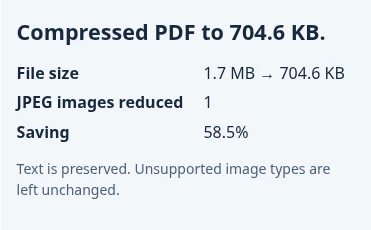
Download our synthetic scan (PDF). The sample has searchable text above a JPEG picture with small type. We ran it through Compress PDF twice in Chromium.
- Original
- 1,697,423 bytes
- Balanced
- 704,614 bytes · 1,600 px edge, 85% quality
- Strong
- 93,293 bytes · 850 px edge, 45% quality
Both outputs retained the searchable cover note. On each output, zoom into “Practice detail: Room B, 12:30” and the smaller line beneath it. Use Balanced if it fits the recipient’s limit. Try Strong when the attachment needs to be smaller, then recheck the small print. A list of text-only pages may have little to shrink.