Image to text (OCR)
Extract printed English text from an image on your own device. Your inputs stay on your device.
LimitsSet up your task
Starting local processing
Ready. Processing stays in this browser.
2 Your result
Downloads are created from local browser memory. Check the result before replacing any original.
How to use Image to text (OCR)
Copy printed English text from a photo or screenshot. It is useful when a notice or form contains words that you cannot select with the cursor.
- Choose a sharp image with the text upright and easy to see.
- Process the image, then compare names, numbers and punctuation with the picture.
- Copy or download the text once you have corrected any mistakes.
Supported inputs and limits
English OCR runs locally with a bundled model. Images are downscaled to a maximum 3200-pixel edge for recognition. Accuracy varies; check names, numbers and punctuation. Handwriting and other languages are not promised.
How it works
Optical character recognition (OCR) reads letters from an image and returns editable text. This release uses a fixed English model and works best on sharp printed text. It is not a handwriting service or a translation tool. A well-lit, straight photograph with sufficiently large letters is usually a better input than a compressed screenshot of a distant page.
Images are reduced to a maximum 3200-pixel edge for recognition, so cropping to the relevant text can be more useful than supplying a very large page containing a small paragraph. Check names, dates, prices, account references and punctuation carefully against the original. Recognition can confuse similar characters even when a sentence looks plausible. Copying the result does not certify its accuracy. If the output is poor, try a clearer source or a tighter crop before relying on it.
Example
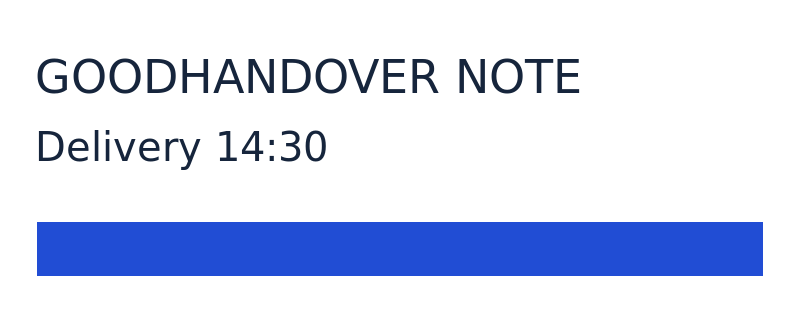
Download the practice image and process it to copy the printed English text. Compare the result with GOODHANDOVER NOTE and Delivery 14:30, including the colon. To keep a scanned PDF’s page appearance and add search, use Make a PDF searchable.
Questions about Image to text (OCR)
Is the recognised text guaranteed to be correct?
No. Blur, small text, columns, language and typeface can cause errors. Verify the result before relying on it.
Why is part of my photo missing from the text?
Tiny, blurred or low-contrast words can be missed. Crop tightly around the relevant text or retake the picture in even light.
Can the reader handle handwriting or translate another language?
The tool is built for printed English. It does not translate and handwriting results are unreliable.
Read Choose between copied text and a searchable scan.
Related tools
Last updated