Flatten a filled PDF form before you send it
When you fill in a PDF form, your answers are stored in editable fields. Whoever receives the file can click into a field and change a figure, a date or a name, and comments or sticky notes you thought you had dealt with may still be attached. Flattening fixes the document as it looks on screen, so the recipient sees exactly what you saw.
When flattening helps
- You are sending a completed application, quote or inventory and want the answers to stay as you entered them.
- The file has review comments, highlights or hidden layers that should not travel with the final copy.
- You need a final copy that cannot easily be edited or have its text copied.
When not to flatten
Some organisations process forms automatically and need the fields to stay editable. If the instructions say to return the form as filled in, or the form has a digital signature that must be validated, send the original. Flattening removes form fields and redraws every page as a picture, so a certificate-backed signature is no longer checkable. Text on flattened pages cannot be selected, searched or read aloud by screen readers. If in doubt, ask the recipient which version they want, and keep your editable original either way.
How to flatten a PDF on your device
- Fill in the form in your PDF reader, save it, and open it again to check every answer is there.
- Open Flatten PDF and choose the saved file. It is processed in your browser and is not uploaded.
- Pick a quality. Screen keeps email attachments small, Standard suits most documents, and High detail is best for printing or small print.
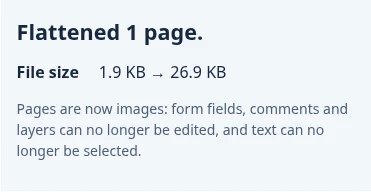
- Download the result and check every page. Try clicking into an answer: nothing should be editable, and the text cannot be selected.
The flattened copy is a new file, so the original document information, such as author and software details, is not carried over. If the result is larger than an upload limit, try the Screen setting, or run Compress PDF on it and check that small print is still readable.
Related jobs
To remove margins from scanned pages before sending, use Crop PDF. Cropping hides the trimmed area rather than deleting it, so flatten afterwards if the margin held anything private. To remove words or numbers rather than fix a whole page, use Redact PDF and check the redaction. If you need to add a signature image before flattening, use Sign PDF.
Try our tested example
Download the filled practice form (PDF). It is a fictional equipment request, with “Projector for Room B” in an editable field. Open it in a PDF viewer and click the field to see how the original behaves.
Run it through Flatten PDF and compare the copies. In our test the answer remained visible, but the output contained no form fields or selectable text. Zoom in and verify your entered answer before sending the copy. Retain the editable original for corrections and accessibility.